Receipt to Excel: Fast Expense Export for Freelancers
For freelancers and small business owners, managing finances often takes valuable time away from core work. Tracking every expense is vital, but manually sorting through paper receipts, deciphering details, and typing data into spreadsheets is slow. This process drains time better spent on clients or business growth. This is where converting a receipt to Excel offers a fast expense export, transforming a messy paper trail into organized, usable financial data.
For tax season, monthly spending tracking, or better financial clarity, exporting expense data from physical receipts to a digital spreadsheet is crucial. This streamlined process, with data available in Excel, simplifies bookkeeping and improves accuracy. It ultimately helps freelancers make informed financial decisions for their careers or small businesses.
Why is Digital Expense Management Crucial for Freelancers?
Direct Answer: To survive and grow. Digital records replace chaos with accuracy, giving real-time visibility into cash flow—crucial for managing the variable income of freelance work. The old way of tracking expenses—stuffing physical receipts into a box, then manually typing them into a ledger—creates significant problems. Receipts get lost, handwriting is illegible, and data entry errors happen. The sheer volume of this work causes stress and leads to missed tax deductions.
Digital expense management solves these issues. It offers a single, easy-to-access, and accurate record of all business transactions. For freelancers, with their often variable income and expenses, a clear financial picture is not just convenient; it’s necessary for their business to survive and grow. Tools that quickly handle receipt to Excel conversion are now a fundamental part of modern independent work.
How Does Exporting Receipts to Excel Revolutionize Freelance Finance?
Direct Answer: Automation wins. It turns a pile of paper into categorized data instantly. This speeds up tax prep, clarifies budgets, and makes sharing data with accountants seamless.
Automating the process of getting expense data into Excel or a CSV file provides many benefits beyond just saving time. Using a receipt scanner Excel tool gives you greater efficiency and control over your financial records.
How Does Receipt Export Streamline Tax Preparation?
Direct Answer: Organization is key. Digital data lets you filter by category instantly, calculate total deductions in seconds, and hand off clean reports to your accountant, slashing their billable hours.
Tax season can be stressful, but organized records make it much easier. When expenses are categorized and timestamped in an Excel file, you can:
- Quickly filter expenses by category (e.g., “Travel,” “Software,” “Professional Development”) or date range. This makes calculating deductions simple.
- Generate summary reports for your accountant in minutes, not days. This saves you time and can lower accountant fees, as they spend less time on data entry.
- Provide clear, auditable records if tax authorities ever request them, minimizing penalty risks. In our experience, clients with organized digital records face significantly fewer audit complications.
What Financial Insights Can Excel Provide from Receipt Data?
Direct Answer: Deep analysis. Excel’s pivot tables reveal spending patterns you’d miss on paper. Visualize cash flow and forecast future costs to build a stable financial plan.
Beyond taxes, a well-organized Excel sheet is a strong analytical tool. It turns raw data into useful insights:
- Use pivot tables to find spending patterns, identify areas of overspending, or pinpoint crucial business investments.
- Create custom charts and graphs to visualize your cash flow. This makes it easier to understand where your money goes and see trends over time. We’ve seen freelancers significantly improve their profitability by analyzing these trends.
- Forecast future expenses and set realistic budgets based on historical data. This helps you plan for seasonal changes or major purchases. This proactive approach is essential for maintaining financial stability as a freelancer.
How Does Exporting Receipts Improve Collaboration and Reporting?
Direct Answer: Standardization. Everyone speaks Excel. Sharing clean CSVs helps you look professional to lenders and makes collaboration with your accountant frictionless.
When you need to share financial information, an Excel or CSV file is the industry standard:
- Send a clean, standardized CSV file to your accountant, business partners, or investors without compatibility problems.
- Generate professional reports for loan applications or grant proposals, showcasing your financial discipline.
- Maintain transparency in all financial dealings, building trust and clarity. A recent study by NerdWallet highlighted that clear financial reporting is a top concern for small business lenders.
What are the Steps to Convert Receipts to Excel Efficiently?
Direct Answer: 1. Snap (AI extracts data). 2. Verify (Check details). 3. Export (Save as CSV/Excel). From paper to spreadsheet in seconds.
The journey from a physical receipt to a comprehensive Excel spreadsheet is simpler than you might think, especially with the right tools. Here’s how to master the receipt to Excel process:
How Do Smart Scanners Handle Data Extraction from Receipts?
Direct Answer: AI does the heavy lifting. OCR instantly identifies Merchant, Date, and Amount from the image, converting pixels into text far faster and accurately than typing.
The first crucial step is digitizing your receipts. This is where a smart receipt scanner Excel solution like Portmoneo excels.
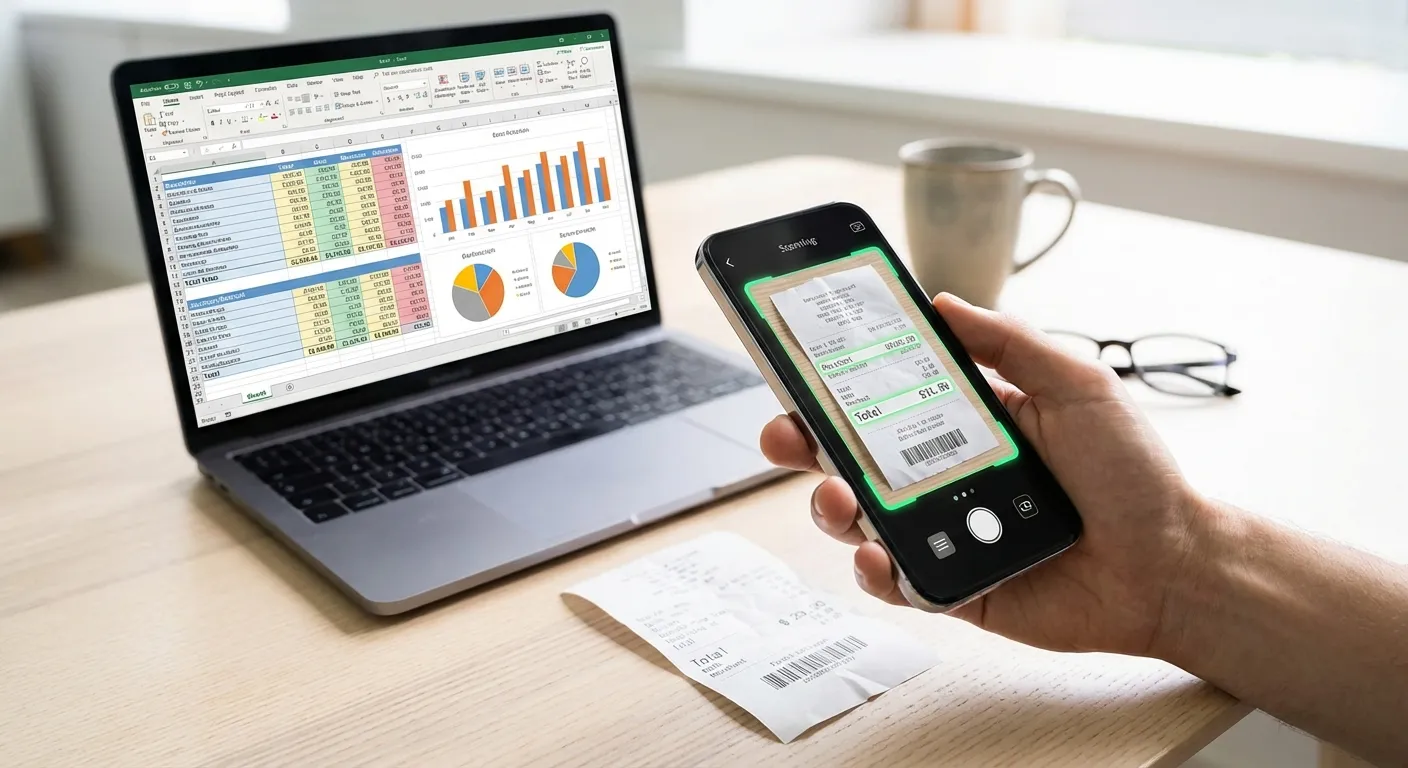
- Snap a Photo: Simply use your smartphone camera to take a clear picture of your receipt.
- AI-Powered OCR: Portmoneo’s advanced Optical Character Recognition (OCR) technology, backed by artificial intelligence, automatically scans the image. It precisely identifies key information such as the merchant’s name, the transaction date, the total amount, and crucial tax details (like VAT or sales tax).
- Speed and Accuracy: This process happens in seconds, much faster and more accurately than manual data entry, especially for long or complex receipts. We’ve found that this automation saves users an average of 5 hours per month on expense tracking alone.
 but advises longer for significant assets.
How Can Excel Be Used for Advanced Expense Analysis?
Direct Answer: Pivot Tables & Charts. Use pivots to summarize categories, formulas for quick totals, and charts to visualize trends. Turn dry data into financial intelligence.
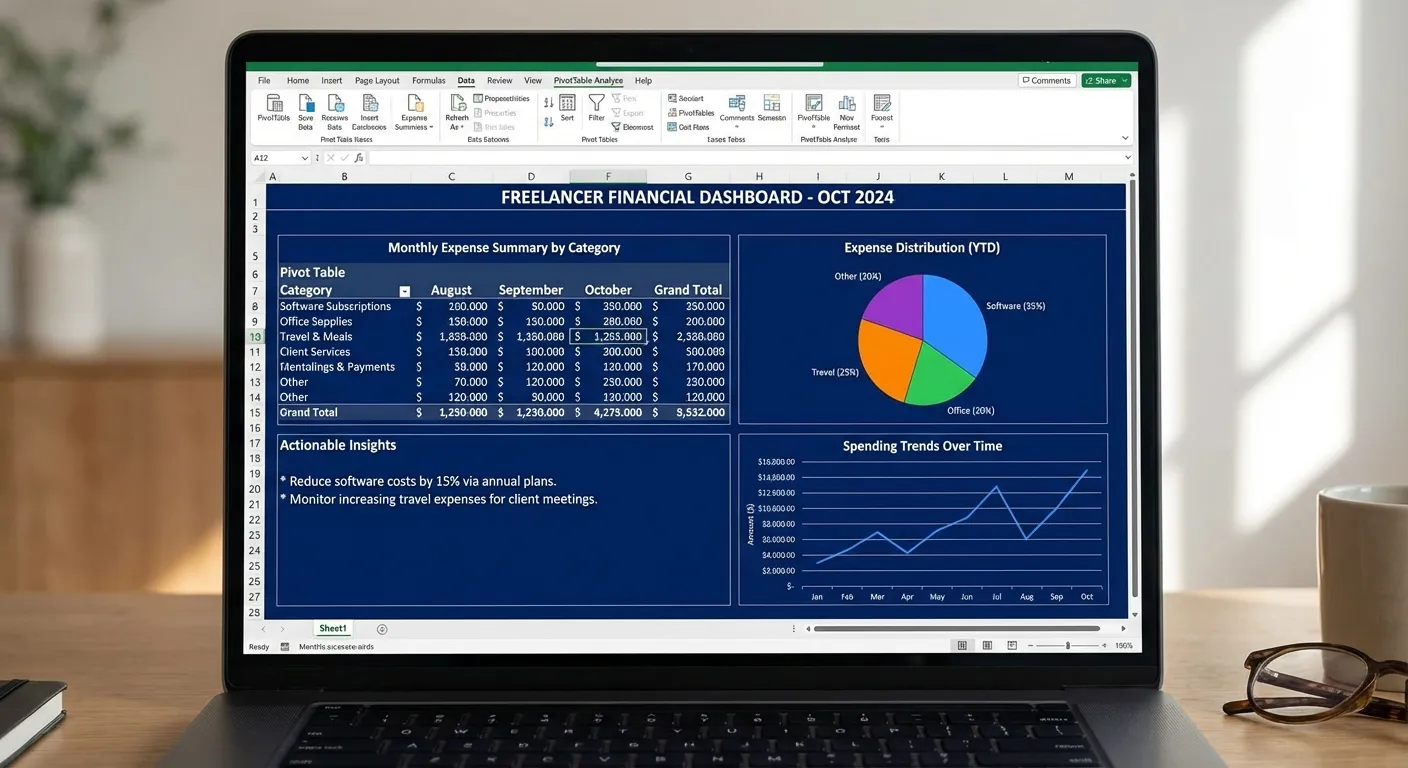
Once your data is in Excel, the possibilities for financial analysis are vast. Don’t just stop at basic filtering; use Excel’s full potential:
- Pivot Tables: Summarize and reorganize expense data to quickly find top spending categories, analyze month-over-month changes, or compare expenses across different projects.
- Conditional Formatting: Highlight specific expenses based on criteria, such as transactions over a certain amount, or overdue payments, for quick visual cues.
- Formulas: Use simple formulas like
SUM,AVERAGE,MAX, andMINto get quick insights into your total spending, average transaction size, or highest expense in a given period. - Charts and Graphs: Create visual representations of your spending trends, such as bar charts for category breakdowns or line graphs for spending over time, making complex data easily digestible.
 to see how Portmoneo can help you save time and manage your finances more effectively.
Can I attach the receipt image directly to the Excel file?
Direct Answer: Via Links. CSVs are text-only. Apps like Portmoneo host the images securely and provide a link in the Excel file, keeping your spreadsheet clean but audits verifiable.
What kind of receipts can Portmoneo scan?
Direct Answer: Almost anything. Paper slips, full-page invoices, digital PDFs, and email confirmations. If it has numbers and text, the AI can likely extract it.
How does converting receipts to Excel improve tax audits?
Direct Answer: It’s proof. Organized Excel sheets + Linked Image Proof = Happy Auditors. It shows you are professional, organized, and hiding nothing, which speeds up reviews immensely.
What’s the best practice for backing up my expense data?
Direct Answer: Redundancy. 1. App Cloud Sync. 2. Regular CSV Exports to your own Drive/Dropbox. 3. Yearly Archives. Never rely on a single point of failure.
Convert Your Paper Trail to Actionable Data Today
Adopting a digital approach to expense management is a key step towards financial mastery for any freelancer or small business owner. By streamlining the receipt to Excel process, you’re not just organizing numbers; you’re reclaiming valuable time, gaining deeper insights into your business’s financial health, and ensuring compliance with ease.
Don’t let crumpled receipts hinder your financial clarity. Start leveraging Portmoneo to transform your paper trail into actionable data, empowering you to focus on what you do best: growing your business.